







Understanding the Ubuntu Terminal
If you’re new to Ubuntu or Linux in general, you’ve probably heard people talking about the “Terminal” or “command line.” Maybe it seems intimidating, like something only programmers and tech experts use. The truth is, the Ubuntu Terminal is one of the most powerful and efficient tools at your disposal, and once you understand it, you’ll wonder how you ever managed without it.
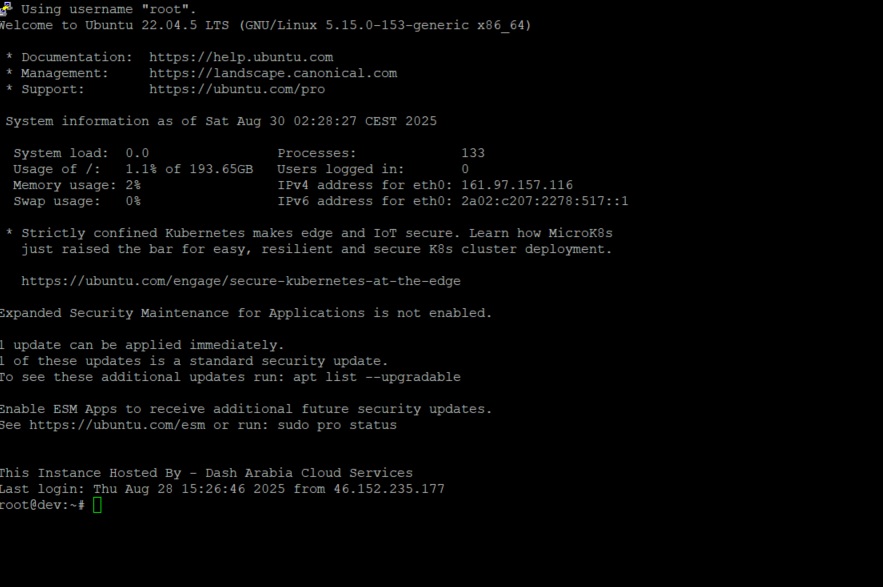
What is the Ubuntu Terminal?
The Ubuntu Terminal is a text-based interface that allows you to interact with your computer using typed commands instead of clicking on icons and menus. Think of it as having a direct conversation with your operating system – you type what you want to do, and the system responds immediately.
The Simple Explanation
Imagine your computer’s graphical interface (the desktop, icons, and windows) as a fancy restaurant with a visual menu and waiters. The Terminal is like having direct access to the kitchen – you can tell the chef (your computer) exactly what you want, how you want it prepared, and when you want it served. It’s more direct, faster, and gives you much more control.
Technical Definition
Technically, the Terminal is a program that provides access to the shell – the command-line interpreter that processes your commands and communicates with the operating system kernel. In Ubuntu, the default shell is called Bash (Bourne Again Shell), which interprets the commands you type and executes them.
The Evolution: From Past to Present
A Brief History Lesson
Before graphical user interfaces existed, all computer interaction happened through command-line interfaces. The first computers in the 1960s and 70s only had terminals – physical devices with keyboards and screens that connected to mainframe computers. When personal computers emerged, they inherited this text-based interface.
Why It Still Matters Today
Even though we now have beautiful graphical interfaces, the Terminal has never become obsolete. In fact, it’s more relevant than ever because:
- Servers and cloud computing primarily use command-line interfaces
- Software development relies heavily on Terminal operations
- System administration is often faster and more precise via Terminal
- Automation and scripting require command-line knowledge
What Makes Ubuntu Terminal Special?
User-Friendly Linux Distribution
Ubuntu was designed to make Linux accessible to everyone, and this philosophy extends to its Terminal implementation. Unlike some other Linux distributions that can be intimidating for beginners, Ubuntu’s Terminal strikes a perfect balance between power and usability.
Built-in Help and Documentation
Ubuntu Terminal comes with comprehensive help systems. Almost every command has built-in documentation that you can access instantly, making it beginner-friendly while maintaining professional-grade capabilities.
Package Management Integration
Ubuntu’s Advanced Package Tool (APT) system is seamlessly integrated with the Terminal, making software installation and system maintenance straightforward through simple commands.
Understanding the Ubuntu Terminal Interface
What You See When You Open Terminal
When you first open the Ubuntu Terminal, you’ll see something like this:
username@computer-name:~$
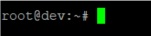
Let’s break this down:
- username: Your current user account. the user here is root.
- @: Separator (just means “at”)
- computer-name: Your computer’s hostname. Host name in this example is dev.
- ~: Your current location (~ means your home directory)
- $: The prompt symbol (indicates you can type a command)
The Anatomy of a Command
Every Terminal command follows a basic structure:
command [options] [arguments]For example:
bash
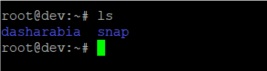
ls -la /home/username- ls: The command (list directory contents)
- -la: Options that modify how the command works
- /home/username: The argument (what to operate on)
Why the Ubuntu Terminal is Important
1. Speed and Efficiency
Once you learn basic commands, many tasks become significantly faster through the Terminal. For example:
Graphical Method: Open file manager → navigate to folder → right-click → select copy → navigate to destination → right-click → paste
Terminal Method: cp source_file destination_folder (one command, instant execution)
2. Precision and Control
The Terminal gives you exact control over what happens. You can:
- Specify exactly which files to operate on
- Control how operations are performed
- Handle edge cases that GUI applications might not support
- Work with files and directories that might be hidden from graphical interfaces
3. Remote System Management
When managing servers or remote systems, you often only have Terminal access. Learning the Ubuntu Terminal prepares you for:
- Managing cloud servers (AWS, DigitalOcean, Google Cloud)
- Administering web servers
- Working with embedded systems
- Troubleshooting remote Linux machines
4. Automation Capabilities
The Terminal excels at repetitive tasks. You can:
- Create scripts to automate complex workflows
- Schedule tasks to run automatically
- Process hundreds or thousands of files with single commands
- Chain commands together for powerful operations
5. System Troubleshooting
When graphical interfaces fail or systems have problems, the Terminal often remains accessible and provides:
- Detailed error messages and logs
- Direct access to system configuration files
- Ability to restart services and processes
- Tools for diagnosing hardware and software issues
Common Uses of Ubuntu Terminal
Daily Computing Tasks
File Management:
- Creating, copying, moving, and deleting files
- Searching for files across your system
- Organizing and backing up data
- Checking file permissions and ownership
System Maintenance:
- Installing and updating software
- Monitoring system performance
- Cleaning temporary files and caches
- Managing user accounts and passwords
Text Processing:
- Editing configuration files
- Searching through document contents
- Batch processing text files
- Creating and managing logs
Professional and Development Work
Software Development:
- Compiling and running programs
- Managing source code with Git
- Installing development tools and libraries
- Running automated tests and builds
Web Development:
- Managing web servers
- Deploying websites and applications
- Database administration
- SSL certificate management
System Administration:
- Server configuration and maintenance
- Network troubleshooting
- Security monitoring and management
- Backup and recovery operations
Breaking Down Terminal Intimidation for Beginners
Common Fears and Misconceptions
“I’ll break my computer” Modern Linux systems like Ubuntu have built-in protections. Most destructive operations require special permissions (sudo), and the system will warn you before doing anything dangerous.
“It’s too complicated” Start with basic commands and gradually build your knowledge. You don’t need to learn everything at once – even knowing 10-15 commands will significantly improve your computing experience.
“It’s only for programmers” While programmers use Terminal extensively, it’s valuable for anyone who uses a computer regularly. System administrators, data analysts, researchers, students, and power users all benefit from Terminal skills.
Making Terminal Approachable
Start Small: Begin with simple file operations like ls (list files) and cd (change directory). Master these before moving to more complex commands.
Use Tab Completion: Press Tab while typing commands or file names – Ubuntu will automatically complete them or show you available options.
Don’t Memorize, Understand: Focus on understanding what commands do rather than memorizing syntax. Use man command_name to read documentation for any command.
Practice Safely: Create a practice directory where you can experiment without worrying about affecting important files.
Terminal vs. Graphical Interface: When to Use Each
Terminal is Better For:
Batch Operations: Processing multiple files simultaneously
bash
# Rename all .txt files to .backup in one command
for file in *.txt; do mv "$file" "${file%.txt}.backup"; done
Remote Work: Managing servers and cloud instances where GUI isn’t available
Precision Tasks: When you need exact control over file permissions, system settings, or process management
Automation: Creating scripts and scheduled tasks for repetitive work
Resource Efficiency: Terminal uses minimal system resources compared to graphical applications
Graphical Interface is Better For:
Visual Tasks: Image editing, video watching, web browsing, document formatting
Exploration: When you’re not sure exactly what you’re looking for or need to browse visually
Complex Applications: Full-featured software like LibreOffice, GIMP, or web browsers
Learning: Visual feedback can be helpful when first understanding system structure
Essential Terminal Concepts for Ubuntu Users
File System Navigation
Ubuntu uses a hierarchical file system that starts at the root (/) directory:
/
├── home/
│   └── username/
│       ├── Documents/
│       ├── Downloads/
│       └── Desktop/
├── etc/        (system configuration)
├── var/        (variable data, logs)
├── usr/        (user programs)
└── tmp/        (temporary files)
Understanding Permissions
Every file and directory in Ubuntu has permissions that control who can read, write, or execute them:
- r (read): Permission to view file contents
- w (write): Permission to modify files
- x (execute): Permission to run programs or access directories
Environment Variables
These are system-wide settings that programs use to find information:
- PATH: Directories where the system looks for commands
- HOME: Your user’s home directory location
- USER: Your current username
Terminal Safety and Best Practices
Safe Computing Habits
Always Double-Check Before Executing: Read your command before pressing Enter, especially when using commands like rm (delete) or sudo (administrator access).
Use Relative Paths When Possible: Instead of typing full paths, use relative navigation to reduce errors.
Keep Backups: Before making significant changes, create backups of important files and configurations.
Test in Safe Environments: Practice new commands in test directories or virtual machines before using them on important data.
